Every plan includes it: 1 connection on Free, 3 on Plus, 10 on Pro. Three rules hold for every connection: it only touches the workspaces you allowed, it can never delete anything, and everything it adds shows in the workspace activity log as you, marked via Claude (or whatever you named it).
Connect Claude, step by step
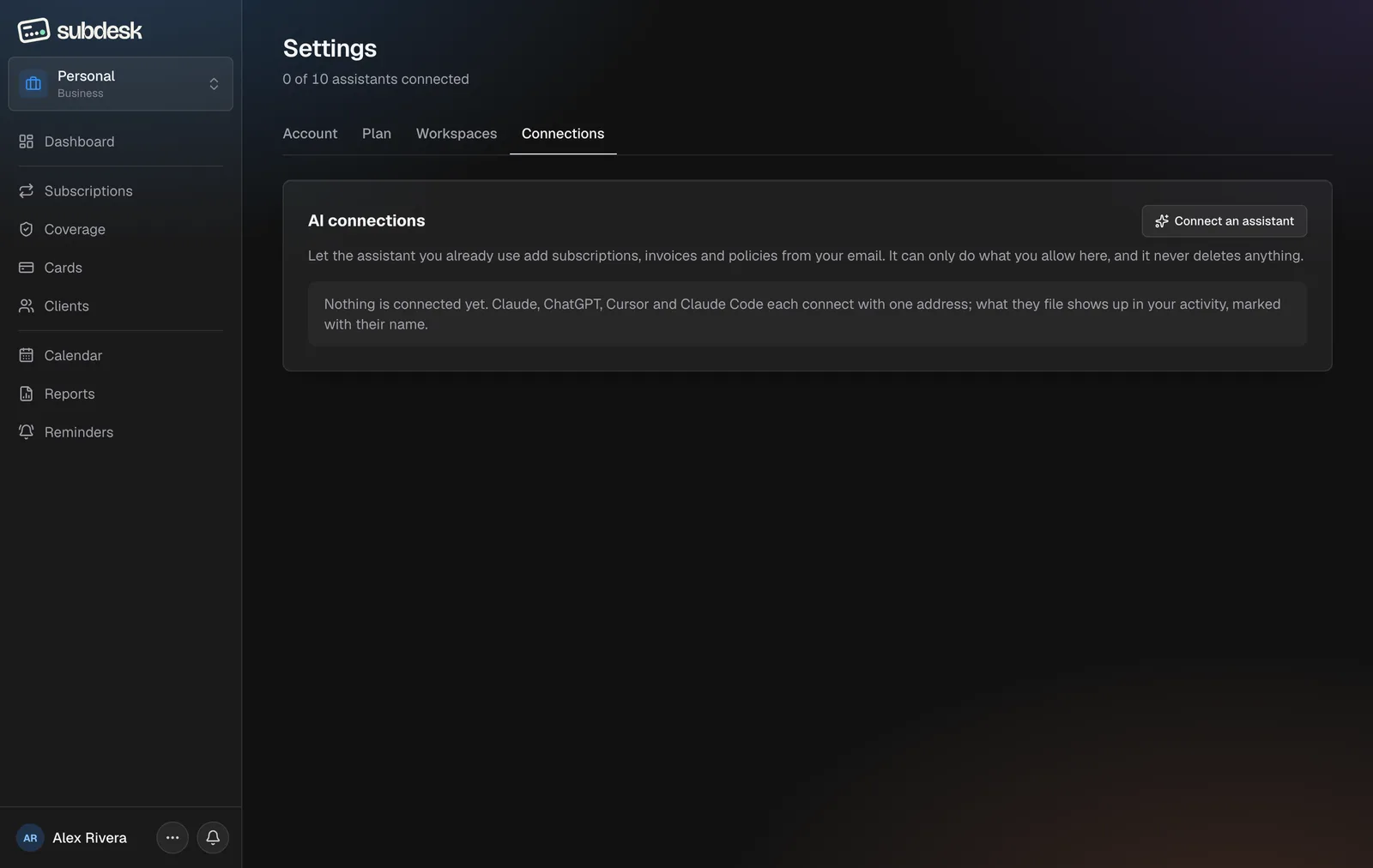
Step 1. Open Settings → Connections
The AI connections card lists what is connected and how many connections your plan allows. Choose Connect an assistant.
Step 2. Pick your assistant
The dialog has one tab per client so you only read the steps for yours. On the Claude tab, copy the server address with the Copy button.
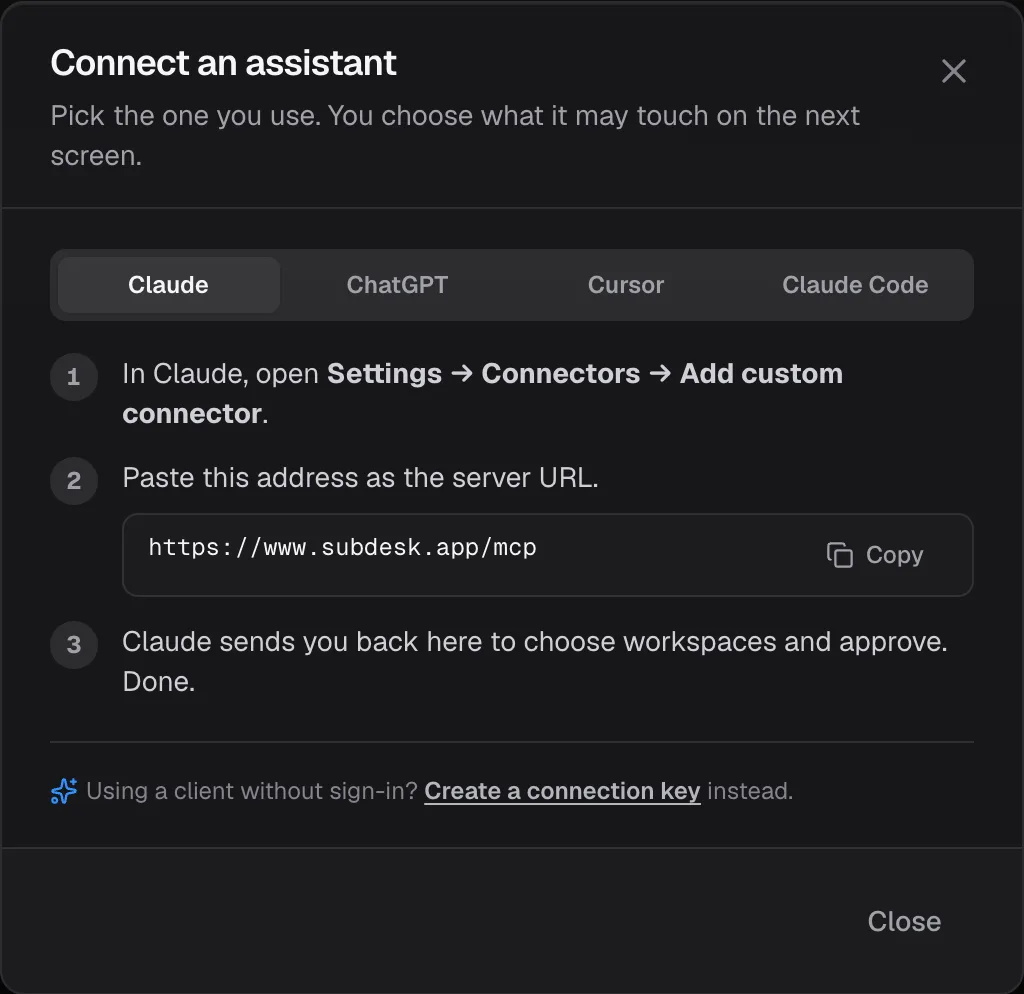
Step 3. Add the connector in Claude
In Claude (web or desktop) open Settings → Connectors → Add custom connector, paste https://www.subdesk.app/mcp as the server URL, and confirm. Claude discovers SubDesk's sign-in on its own; nothing else to type.
Step 4. Approve on SubDesk
Claude opens SubDesk's consent page. It leads with who is asking ("claude.ai wants to read and add to your SubDesk records"), then two choices: which workspaces the assistant may see (view-only ones are listed as view only), and the permission: Read and add (add subscriptions, invoices, cards and coverage and update them, never delete) or Read only. Choose Allow. If you are signed out, SubDesk asks you to sign in first and comes back here. The request waits fifteen minutes.
Step 5. Done
Back in Claude, SubDesk appears as a connector with its tools. In SubDesk the new row shows where it came from (claude.ai), when it was last used, and how many records it has added.
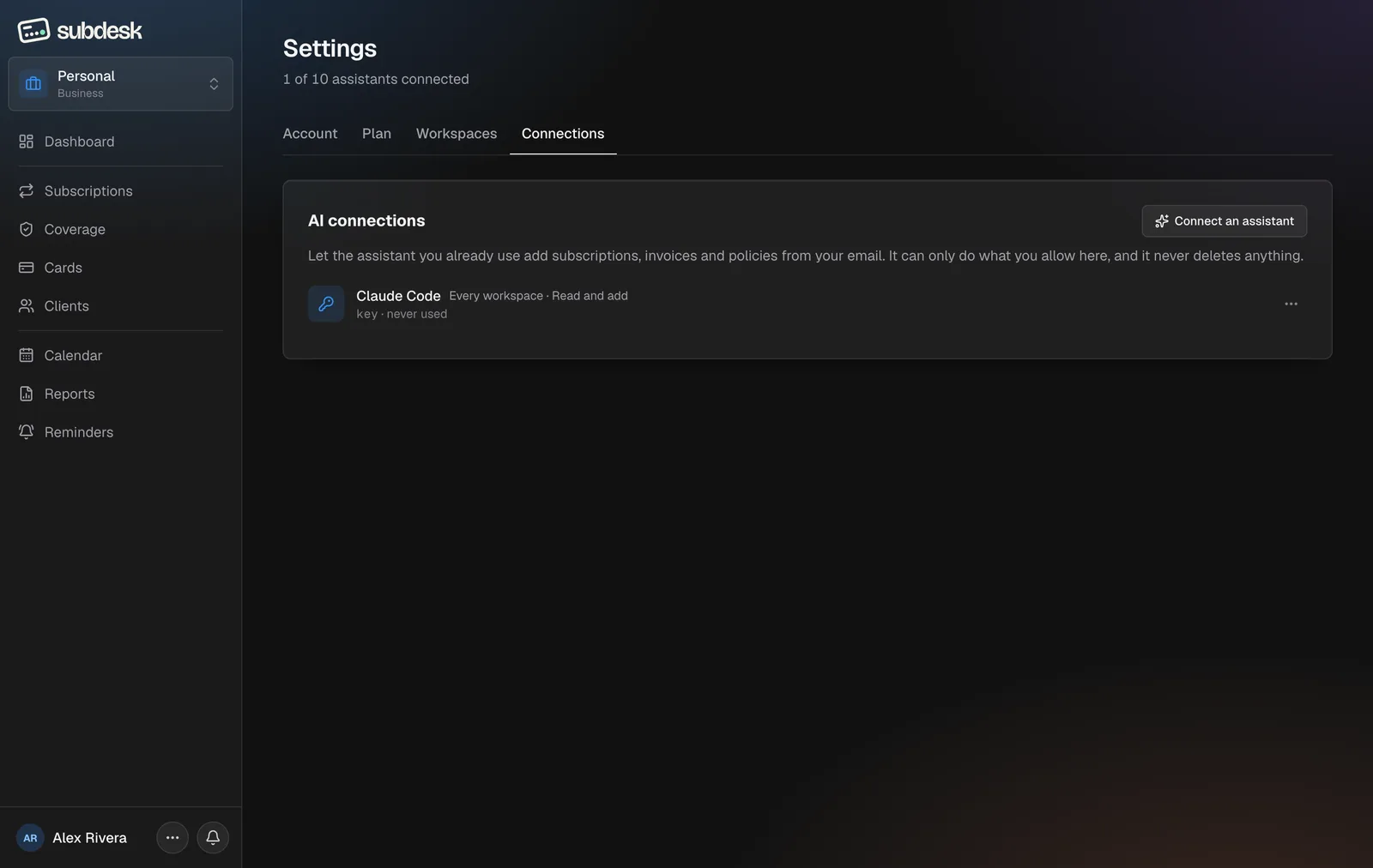
Step 6. Manage it
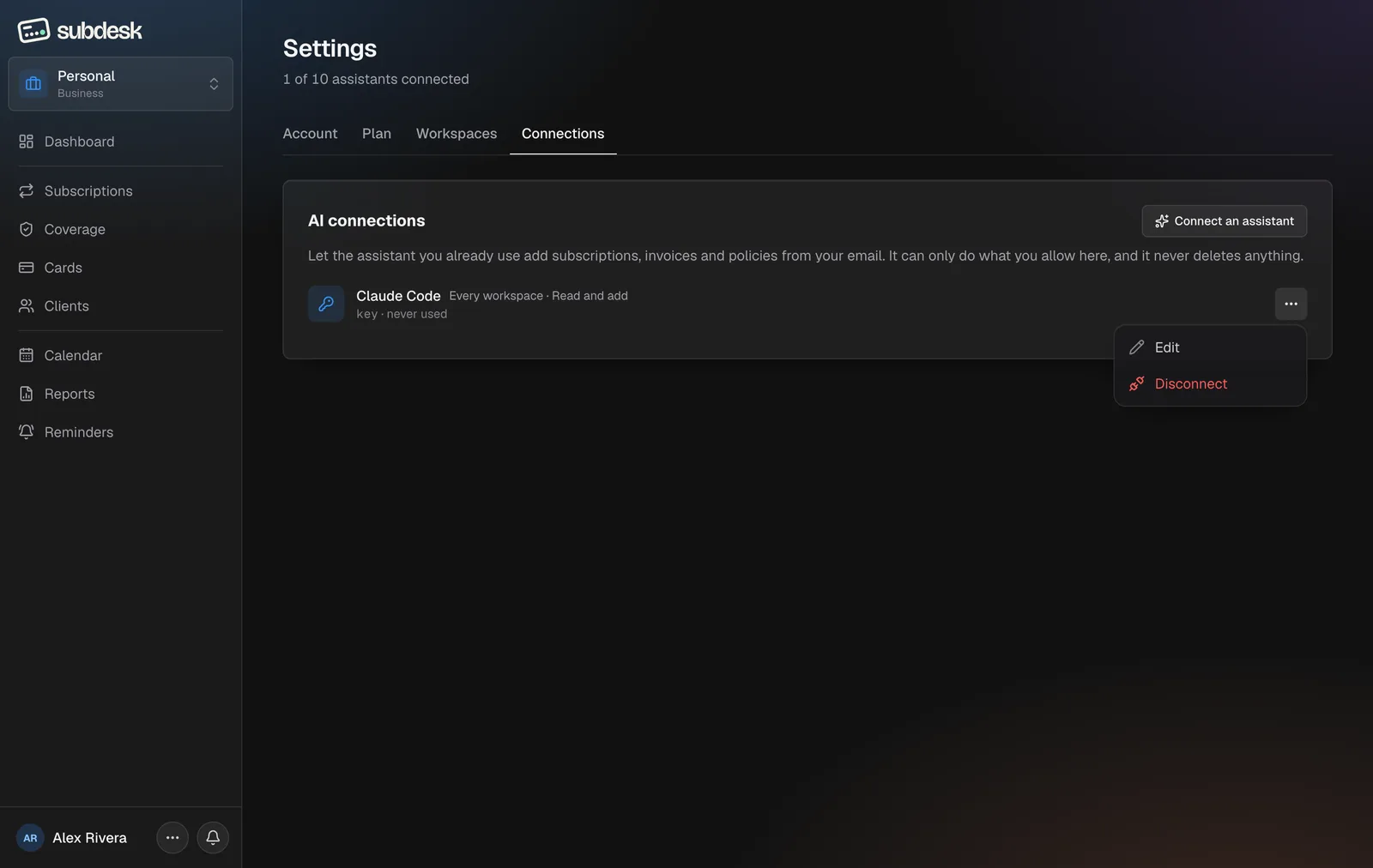
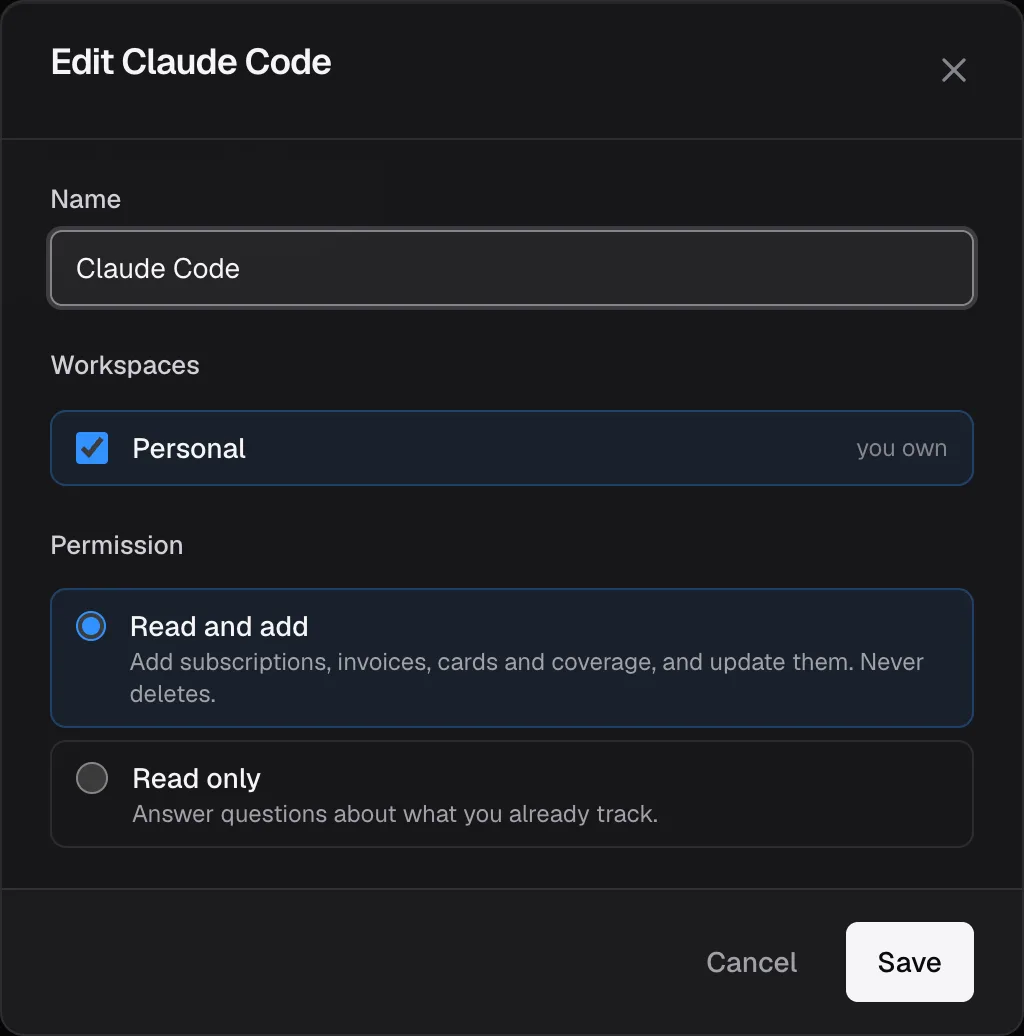
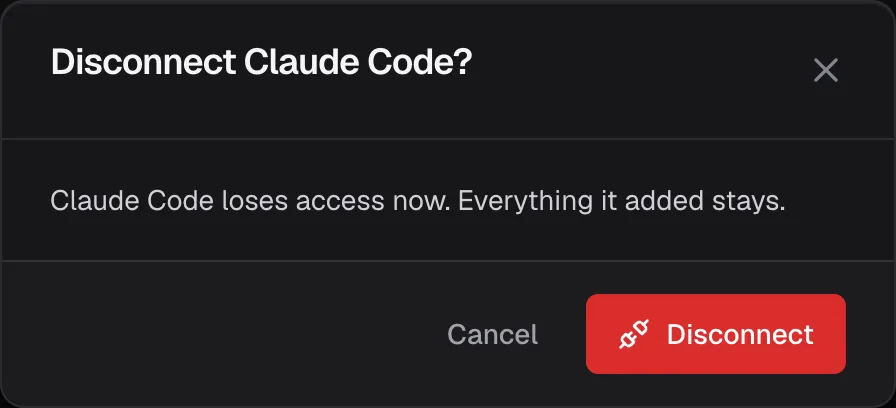
The row's menu has Edit (rename it, change its workspaces or permission) and Disconnect. Disconnecting revokes access at once; everything the assistant added stays.
Other assistants
| Client | What the tab tells you to do |
|---|---|
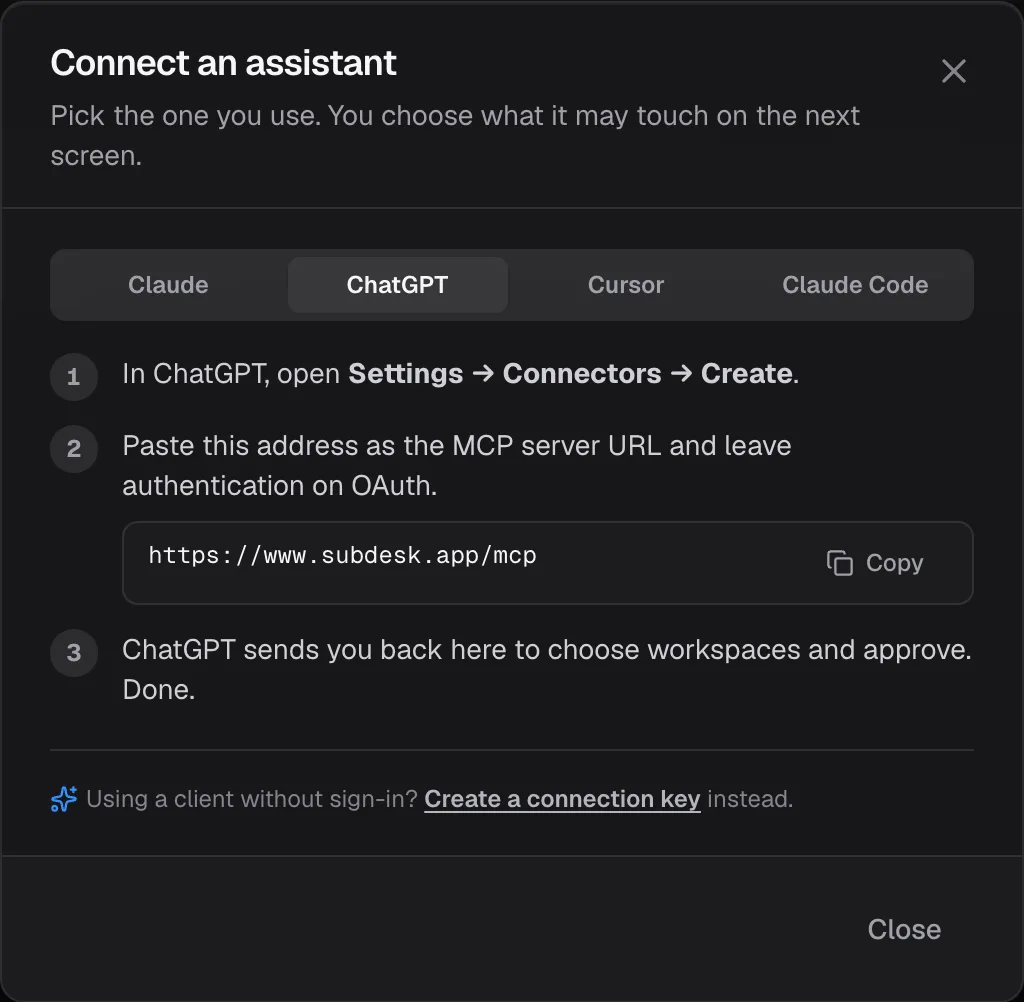
| ChatGPT | Settings → Connectors → Create, paste the address as the MCP server URL, leave authentication on OAuth. ChatGPT sends you to the same consent page. |
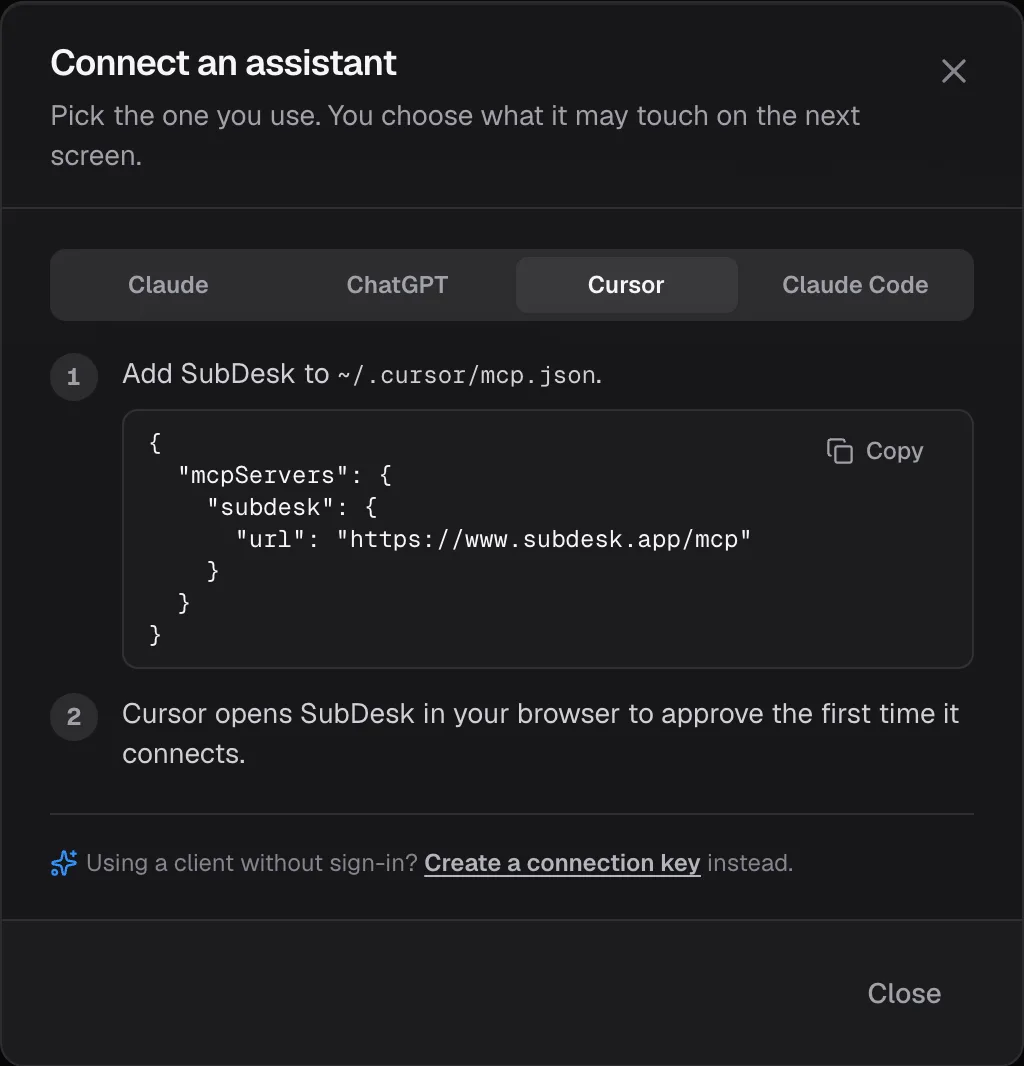
| Cursor | Add SubDesk to ~/.cursor/mcp.json (the tab has the JSON ready to copy). Cursor opens SubDesk in the browser to approve the first time. |
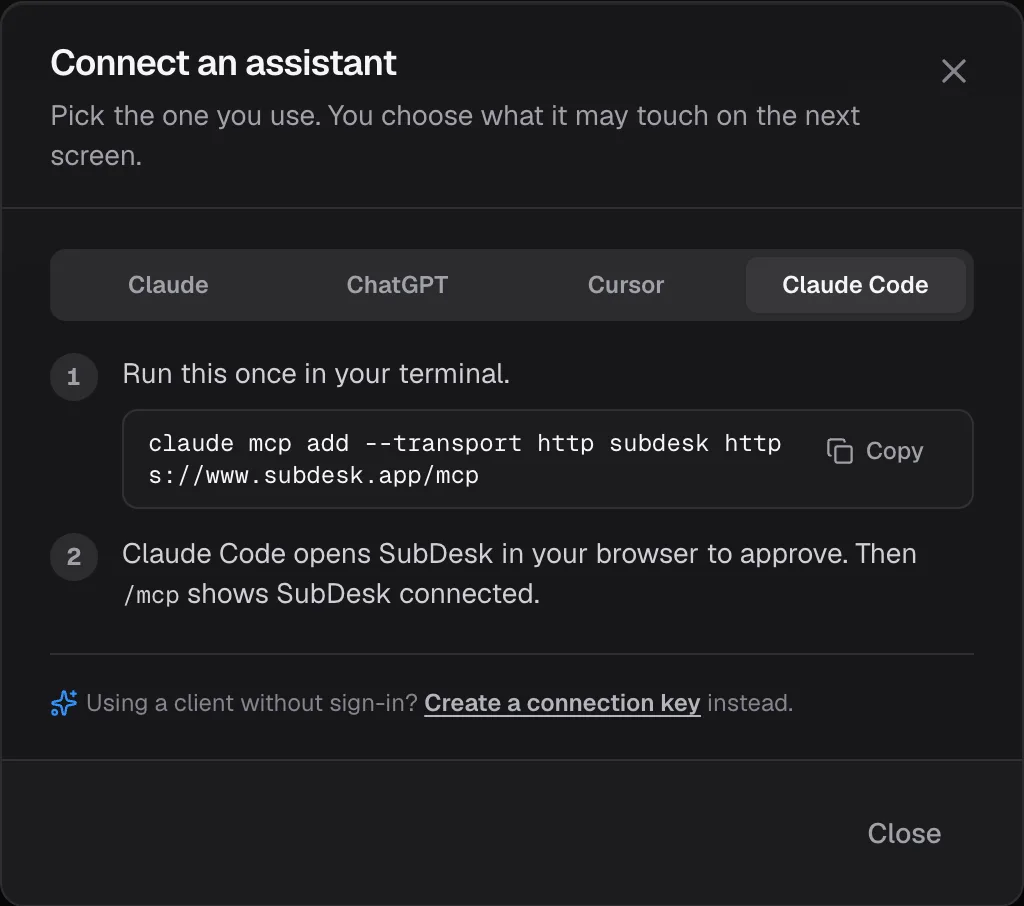
| Claude Code | Run claude mcp add --transport http subdesk https://www.subdesk.app/mcp once. It opens SubDesk to approve, then /mcp shows SubDesk connected. |
Connection keys, for clients without sign-in
Scripts, MCP Inspector and some desktop clients take a token instead of signing in. At the bottom of the dialog choose Create a connection key.
Step 1. Describe the key
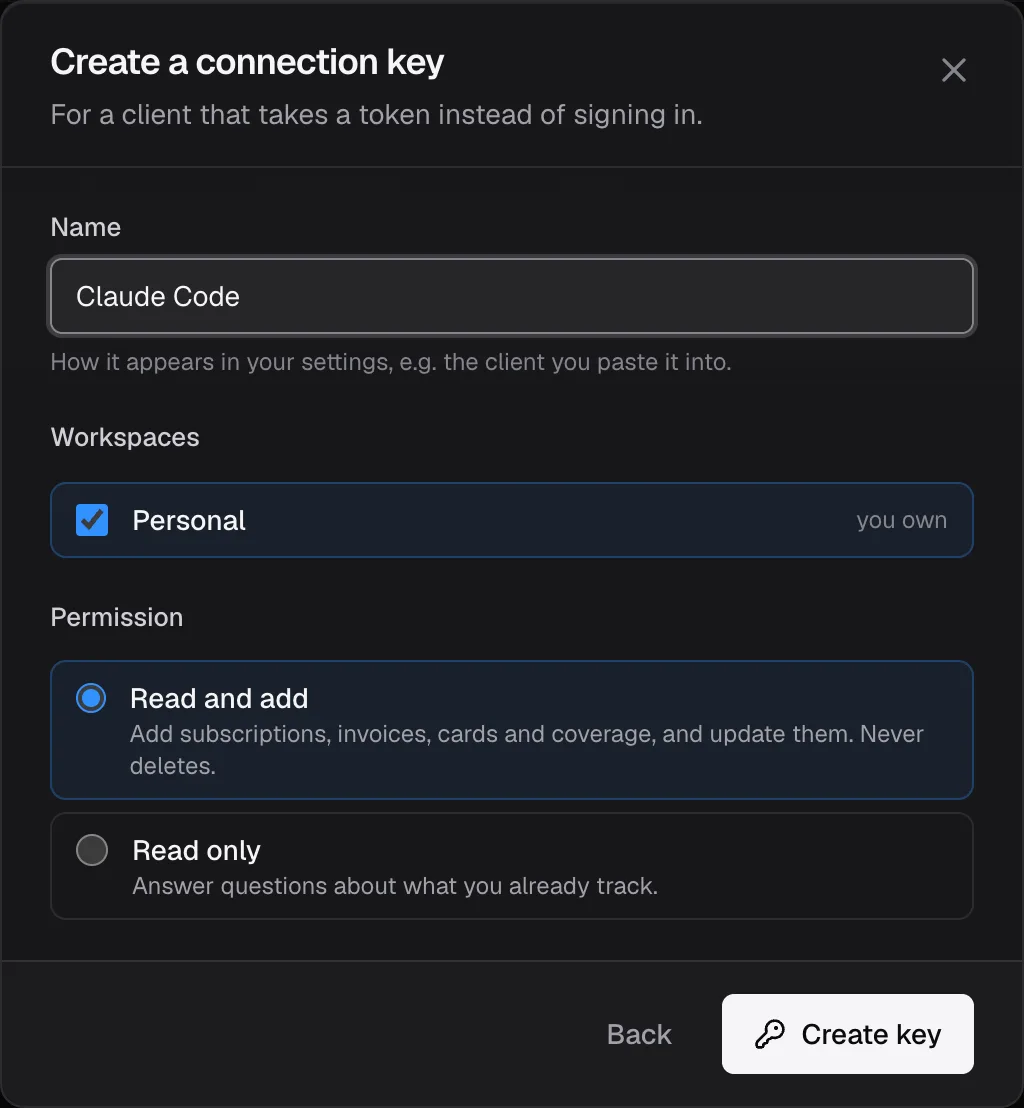
Name it (default "Claude Code"), tick the workspaces, and pick Read and add or Read only. Then Create key.
Step 2. Copy it now
The key is shown once. It starts with sdk_live_ and is sent as an Authorization: Bearer <key> header to https://www.subdesk.app/mcp. A lost key is replaced, never shown again. The dialog also gives the ready-made Claude Code command with the header filled in.
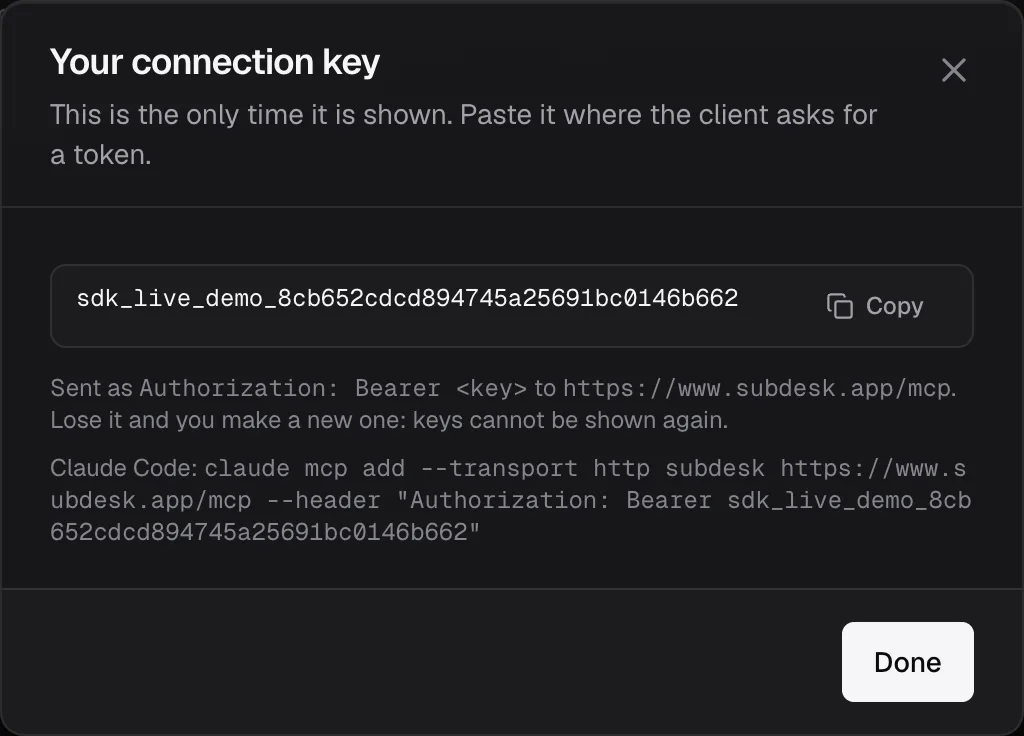
A key is a connection like any other: it appears in the list as key, counts against the same cap, and can be edited or disconnected the same way.
Every command the assistant has
The server offers fourteen tools. Reads work on every connection; adds and updates need Read and add. Every tool takes a workspace_id from list_workspaces, so that is always the first call. Amounts are passed with the currency as printed on the receipt and converted to stored dollars; dates are YYYY-MM-DD.
| Command | Needs | What it does | Ask your assistant, for example |
|---|---|---|---|
list_workspaces | read | The workspaces this connection may see: currency, your role, whether it may add, and how much of the owner's caps are left (subscriptions, coverage, invoice bytes). | "Which SubDesk workspaces can you see, and how much room is left?" |
find_subscriptions | read | Subscriptions by name or preset; an empty query lists them all. Filter by active, cancelled or all. Called before any add, so a match is updated instead of duplicated. | "Do I already track Netflix?" |
get_subscription | read | One subscription with its full price history and invoice list. | "Show me everything about my Adobe subscription, including past prices." |
find_coverage | read | Warranties and policies by name or provider, optionally one kind. | "What insurance policies do I have with AXA?" |
list_cards | read | Cards by nickname, type, last four digits and expiry month. Used to link a subscription to the card a receipt names. | "Which cards are in my Personal workspace?" |
search_presets | read | SubDesk's catalogue of about 900 services and, with scope coverage, makers, retailers, insurers and policy types. Returns the preset key that gives a record the right tile and category. | "Find the SubDesk preset for Spotify." |
create_subscription | add | Adds a subscription: name, amount and currency, monthly or yearly, start and next billing date, category, card by last four digits, trial flag, note, and the email's Message-ID as source so a re-run never files the same receipt twice. A same-name active subscription is refused as a duplicate unless allowed. | "File this Spotify receipt as a monthly subscription on my Visa ending 4242." |
update_subscription | add | Changes only the fields passed: name, cycle, dates, category, card (or unlink it), trial, note, status (active or cancelled). Nothing is deleted. | "Move Notion's next billing date to 1 November and mark it cancelled after that." |
record_price_change | add | Appends a new price to the history, effective from a date, the way a receipt showing a higher price would. The current price follows once the date arrives. | "Netflix went up to $22.99 from 4 October, log that." |
attach_invoice | add | Stores an invoice file (PDF, PNG, JPEG or WebP, up to 1 MB) on a subscription for one billing period, one per period unless replaced. Skipped by clients that cannot hand over file bytes. | "Attach this PDF as the September invoice for Adobe." |
create_card | add | Adds a card by last four digits and type, or returns the one that already exists. An expiry month needs a paid plan. | "Add my new Mastercard ending 5588, expiring 2028-03." |
create_coverage | add | Adds a warranty or an insurance policy: what is covered, provider, serial or policy number, dates, price or premium, auto-renew and the card for a policy. | "Register this AppleCare+ document as a warranty ending 2 November 2027." |
update_coverage | add | Changes a coverage record's fields, including cancelling it. To extend a term, use renew_coverage instead so the old term is kept. | "Change the policy number on my car insurance to POL-2291." |
renew_coverage | add | Closes the current term into history and opens the next one with new dates and, if changed, a new premium. Same as Mark as renewed in the app. | "My car insurance renewed today for a year at 640 EUR." |
The built-in prompt. The server also publishes one prompt, Import from email (import_from_email), with optional workspace and since arguments. It tells the assistant how to go through an inbox properly: list workspaces once, look up each service before adding, log price changes and attach invoices on matches, file warranties and policies as coverage, never cancel or delete without asking, and finish with a short list of what was added, updated, skipped and what needs you.
What a call answers
Every answer carries the stored dollar figure and the figure in the workspace's currency. A refused call answers with a short code and the sentence to relay to you:
| Code | Meaning |
|---|---|
read_only | The connection is read-only, or the workspace is read-only for you |
not_allowed_workspace | Outside the workspaces you ticked at consent |
plan_limit | A cap was hit; the message names the plan that lifts it |
storage_limit, too_large, unsupported_file | Invoice storage full, file over 1 MB, or not a PDF or image |
duplicate | An active record with the same name exists; its id is included so the assistant updates it instead |
not_found, invalid | Unknown id, or a field failed validation (the field is named) |
rate_limited | More than 120 calls in a minute on one connection |
// search_presets { "query": "netflix" }
{ "presets": [ { "key": "netflix", "label": "Netflix", "category": "Entertainment" } ] }

// search_presets { "query": "applecare", "scope": "coverage" }
{ "presets": [ { "key": "applecare", "label": "AppleCare", "group": "Retailers & plans" },
               { "key": "apple", "label": "Apple", "group": "Makers" } ] }

// list_workspaces
{ "workspaces": [ { "id": "8a844165-…", "name": "My workspace", "kind": "business", "currency": "USD",
    "role": "owner", "owner_plan": "pro", "can_write": true,
    "usage": { "subscriptions": { "used": 13, "limit": 200 }, "coverage": { "used": 0, "limit": 100 },
               "invoice_bytes": { "used": 0, "limit": 5368709120 } } } ] }