Add a subscription
Step 1. Open the form
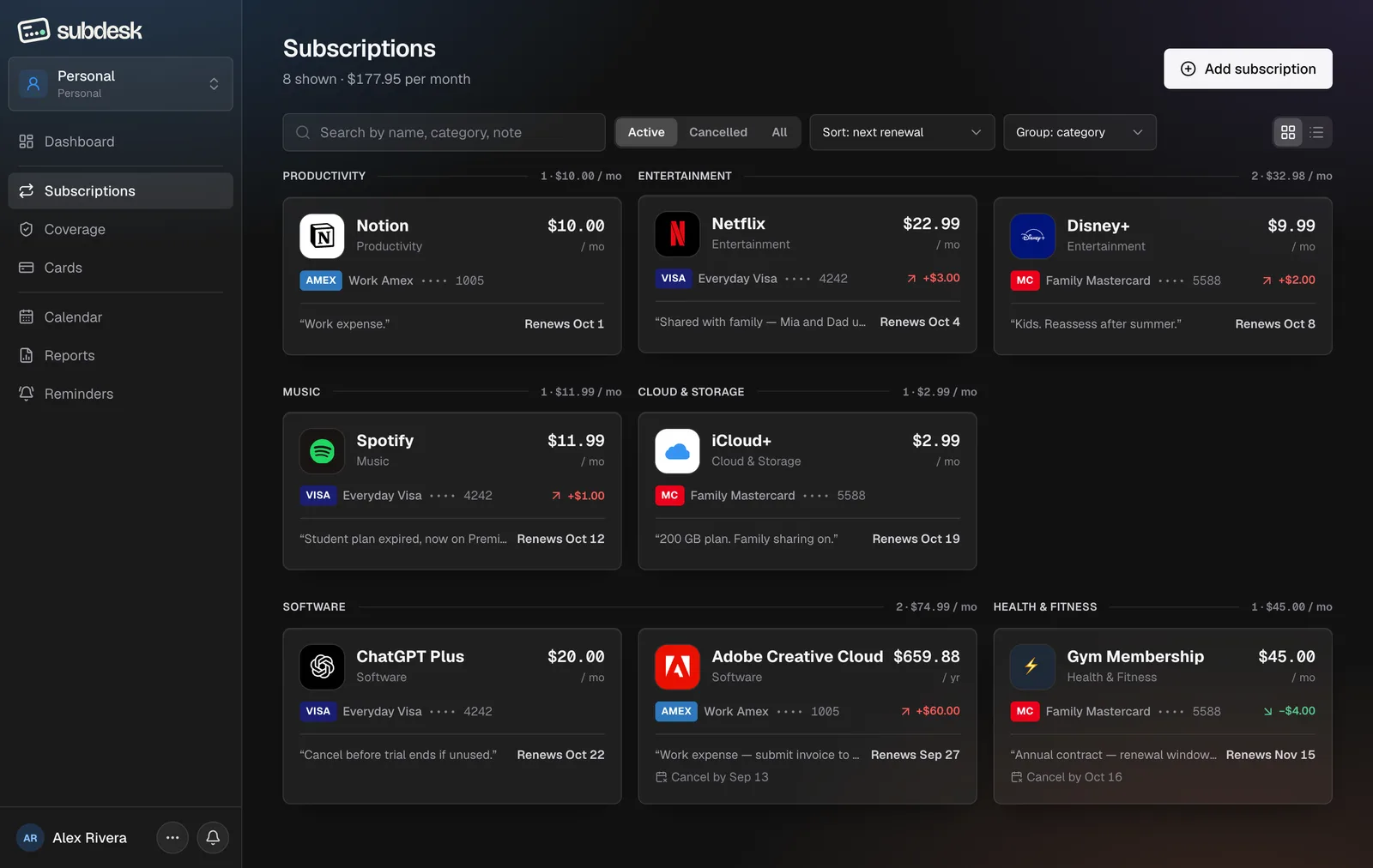
Choose Add subscription top right. On Free the button shows a Plus badge once the 10-subscription cap is reached, and opens the plans screen instead.
Step 2. Type the name
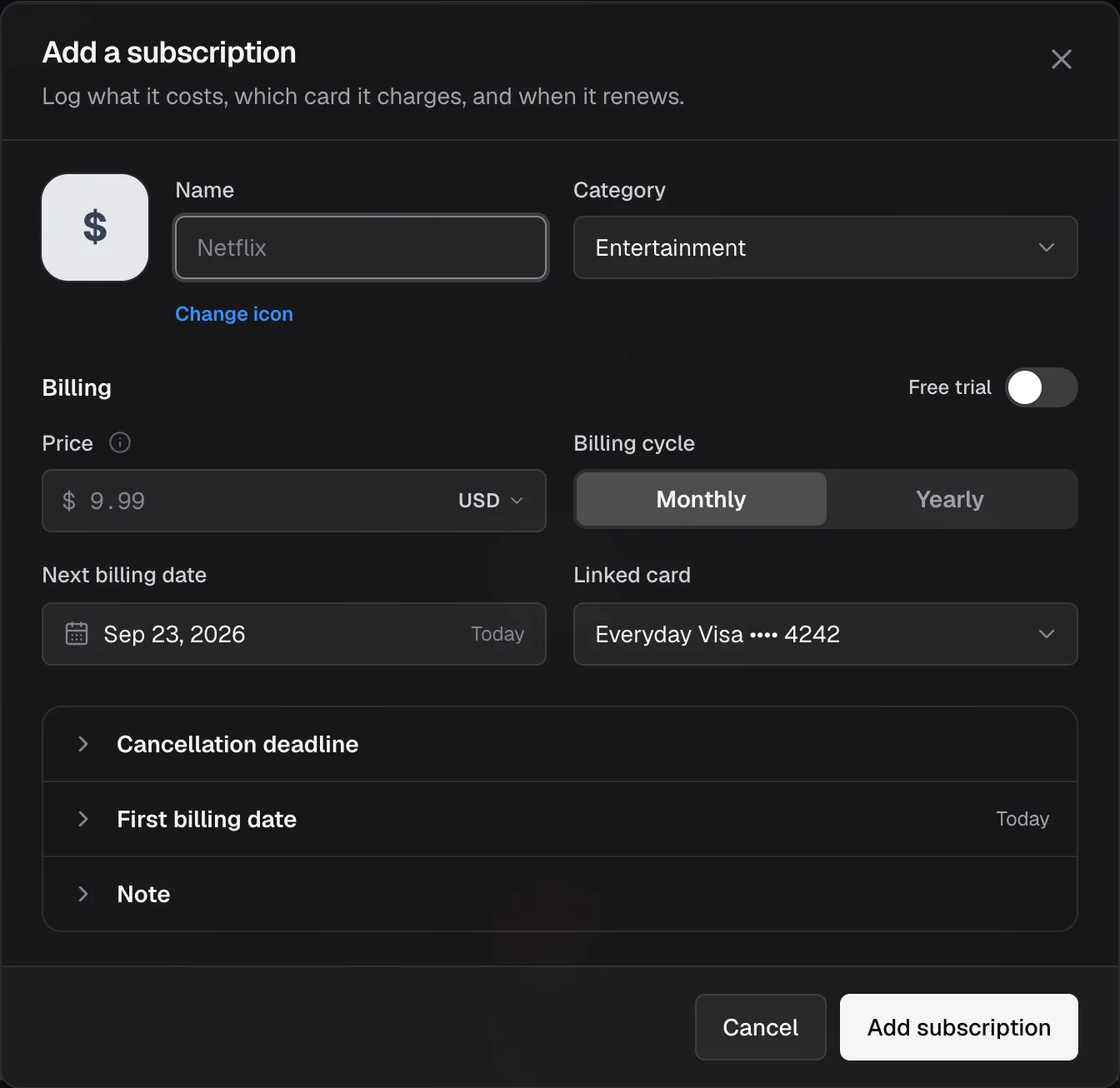
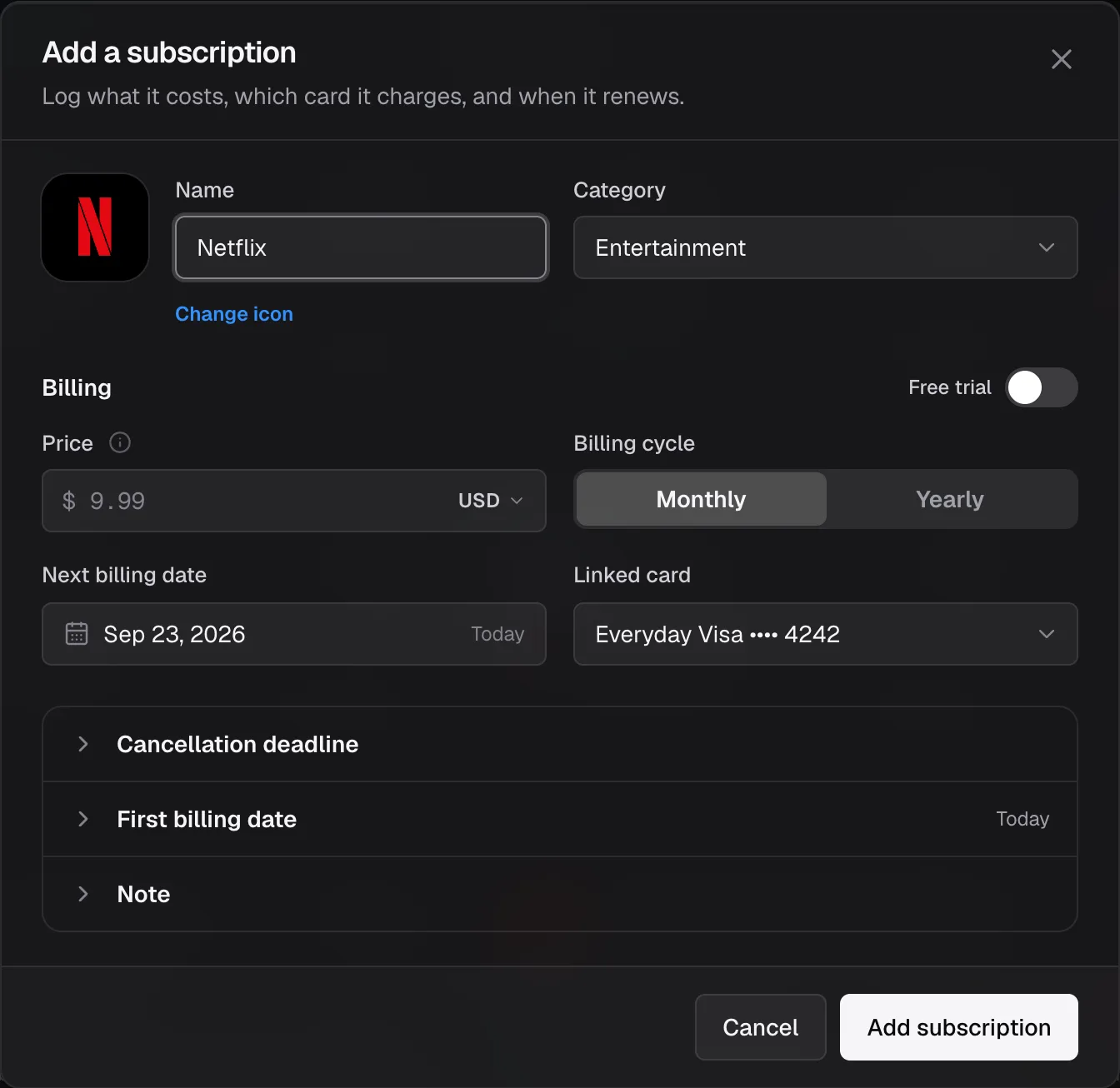
SubDesk recognises about 900 services and picks the brand tile and category for you. Type "Netflix" and the Netflix mark and Entertainment appear. Change icon opens the picker if you want a different one.
Step 3. Set the billing
Enter the price in the currency on your receipt, pick Monthly or Yearly, set the first billing date, and link the card that pays. SubDesk stores every amount in US dollars and shows it in the workspace currency.
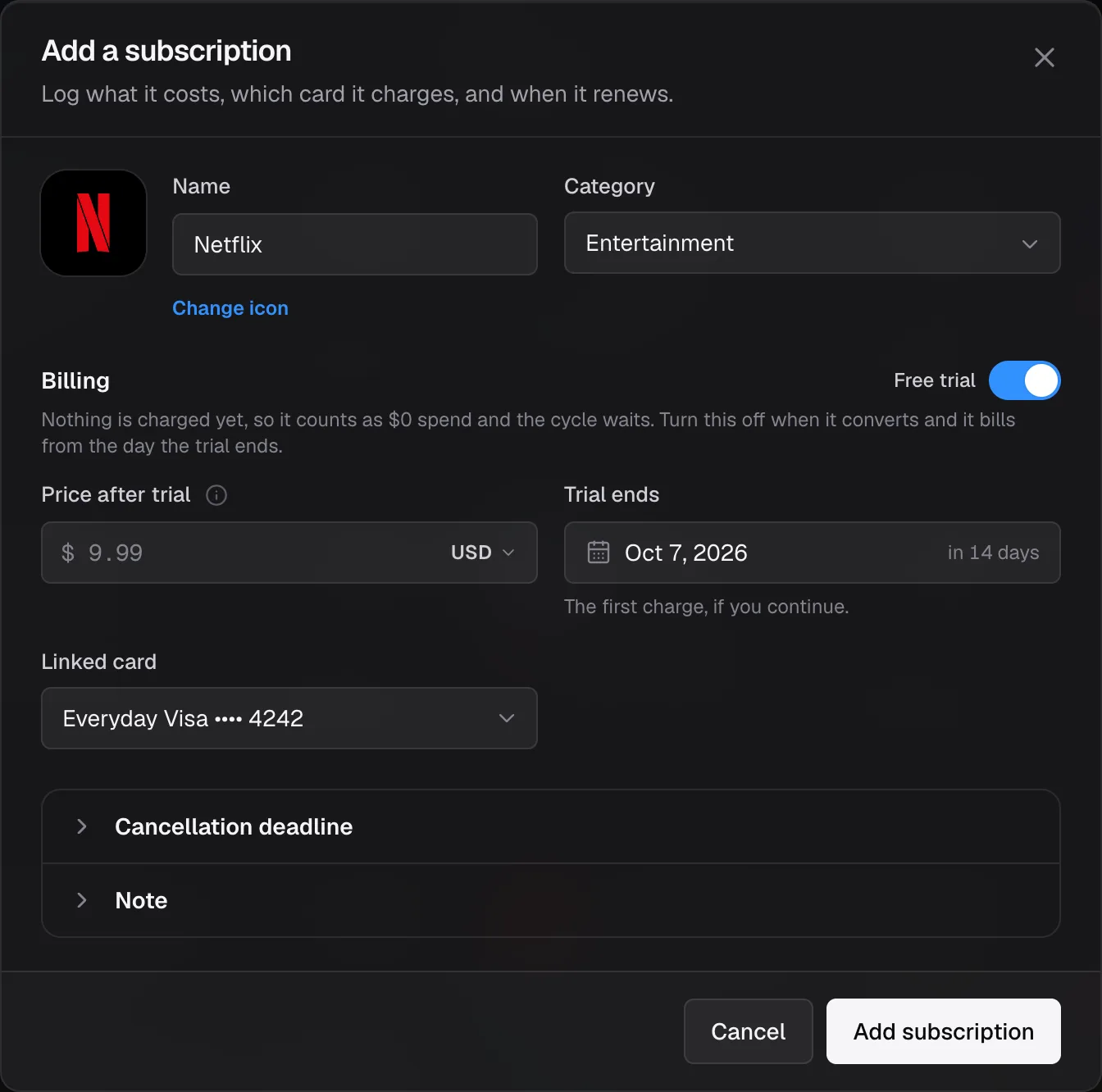
Step 4. Free trial (optional)
Flip Free trial in the Billing header. The cycle disappears, the date becomes Trial ends, and the subscription counts as $0 until you turn the trial off by hand.
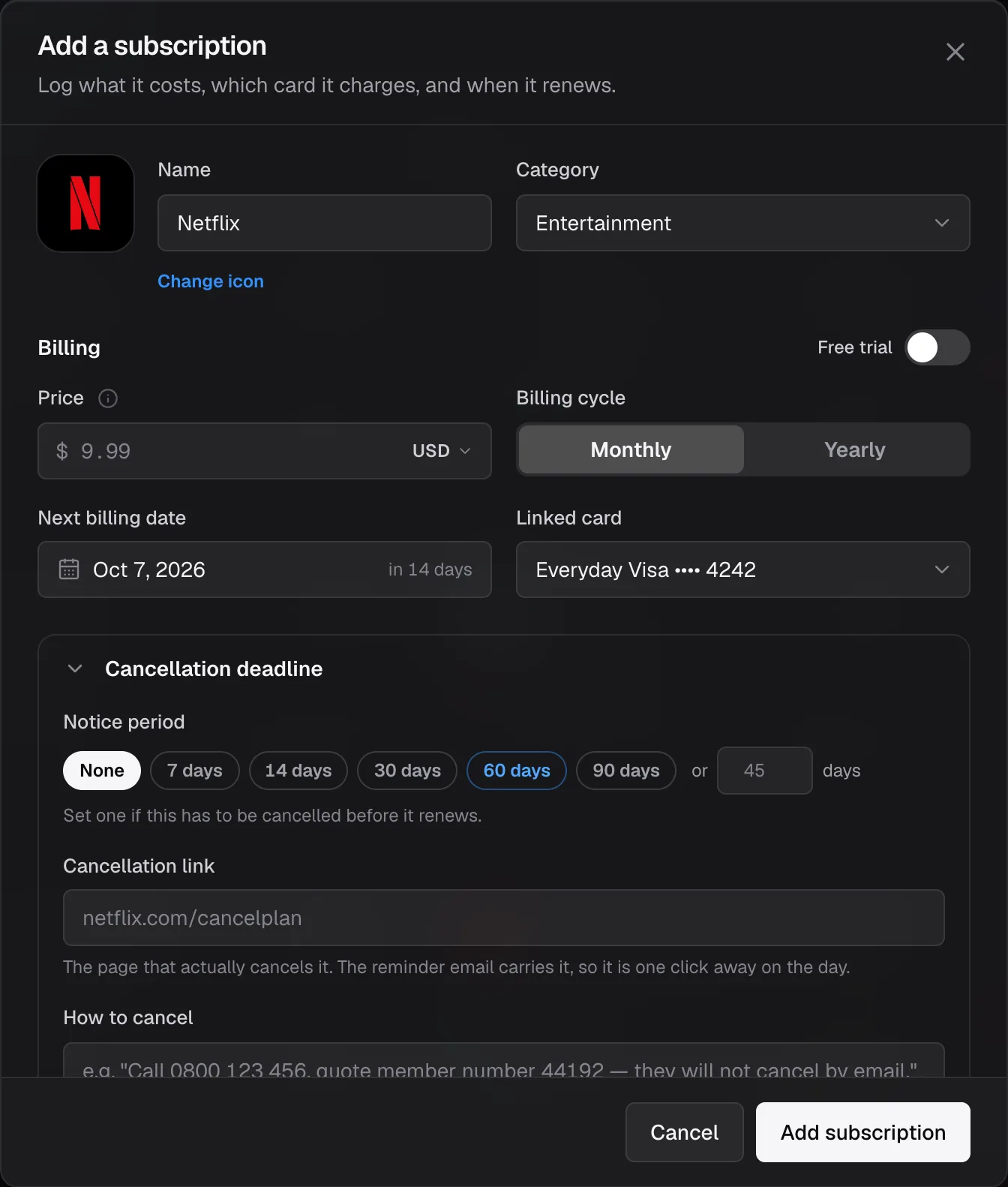
Step 5. Cancellation deadline (Plus and Pro)
Open Cancellation deadline. Pick a notice period (1 to 90 days, or your own), and add the cancellation link and the steps. SubDesk computes the cancel-by date and reminds you 14, 7 and 1 day before it.
Step 6. Save
Add subscription writes the record and returns you to the list. The Note and First billing date rows stay collapsed unless you need them.
The subscription page
Click any subscription to open it. The page shows the price per month and per year, the total paid so far, and when you started. Below it: Payment history with one row per billing period and an Upload slot for that period's invoice (Plus and Pro, PDF or image up to 1 MB), the Cancel by card, and the Price changes history.
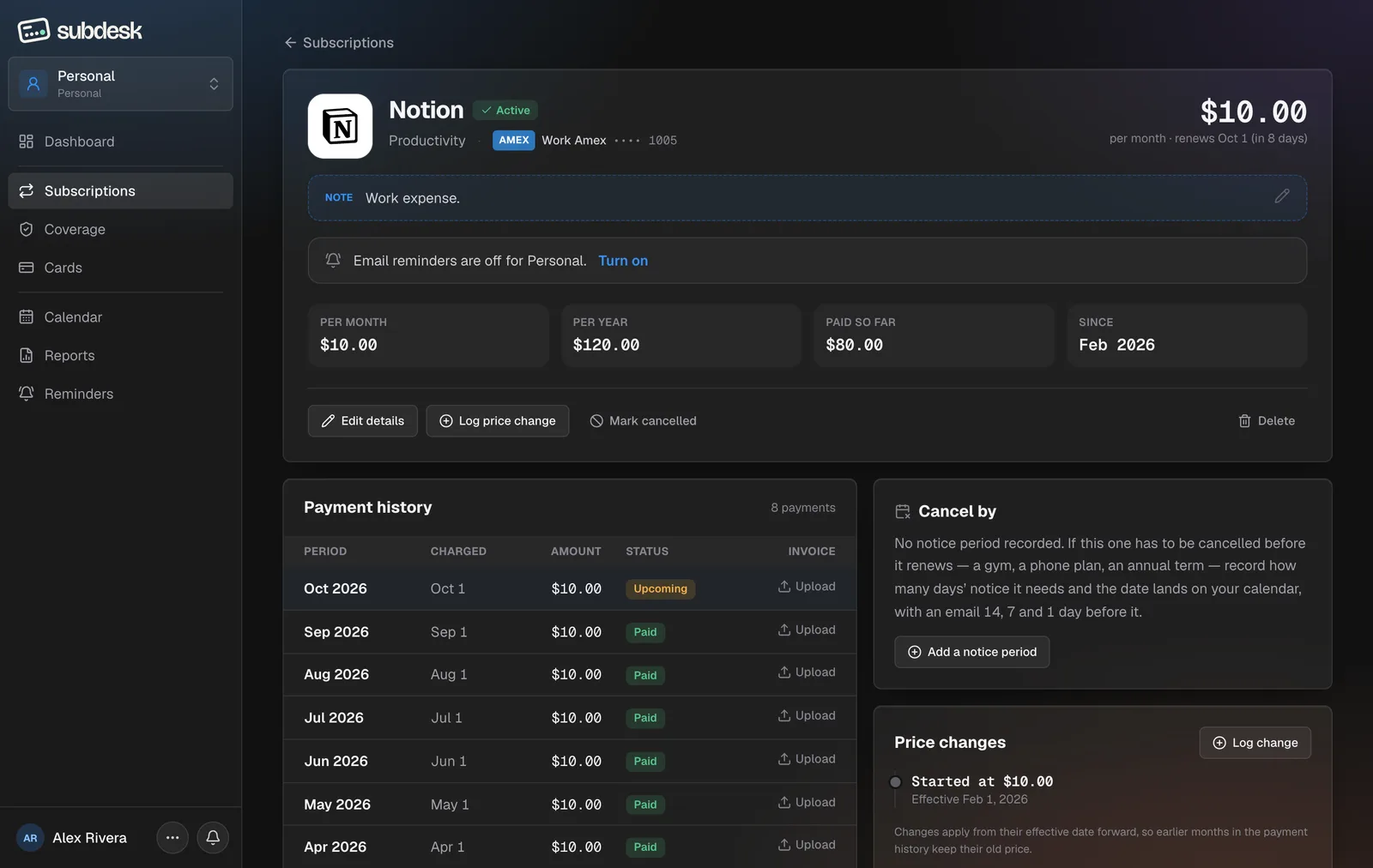
| Action | What it does |
|---|---|
| Edit details | Reopens the form with the record filled in |
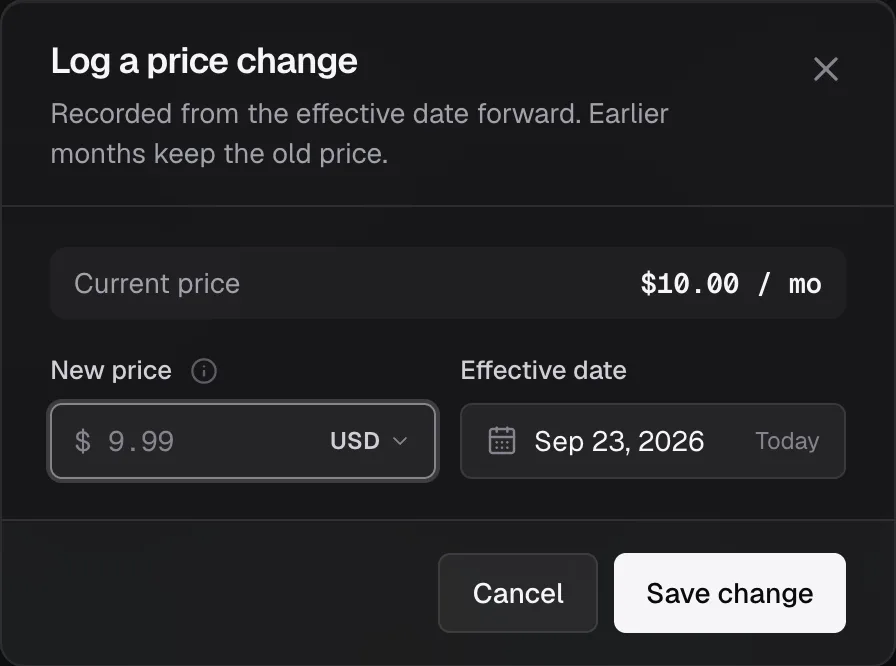
| Log price change | Adds a new price effective from a date; the current price follows once that date arrives |
| Mark cancelled | Keeps the record and its history and stops counting it as spend. Continue subscription undoes it |
| Delete | Removes the record for good after a confirmation |
| Upload (per period) | Attaches the invoice for that month or year. Download gets it back |