Step 1. Pick the kind
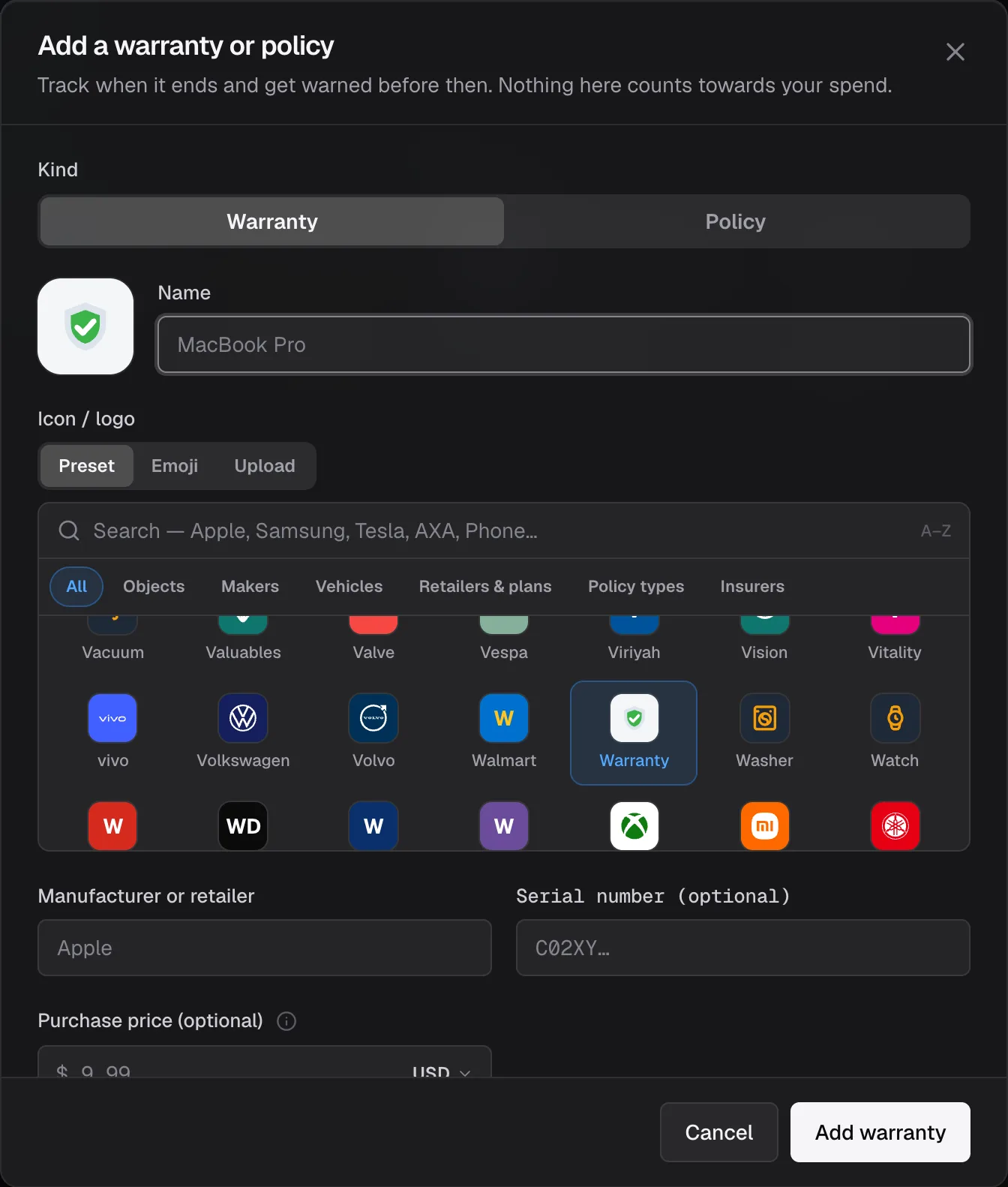
Choose Add coverage, then pick Warranty or Policy at the top of the form.
Step 2. Name what is covered
For example "MacBook Pro" or "Car insurance". The icon picker searches makers, retailers, insurers and policy types, so the record gets the right mark.
Step 3. Fill the details
The provider (manufacturer, retailer or insurer), the serial or policy number, and the dates. A warranty takes the purchase price. A policy takes the premium per term, can auto-renew, and can be charged to one of your cards.
Step 4. Save
Choose Add warranty or Add policy.
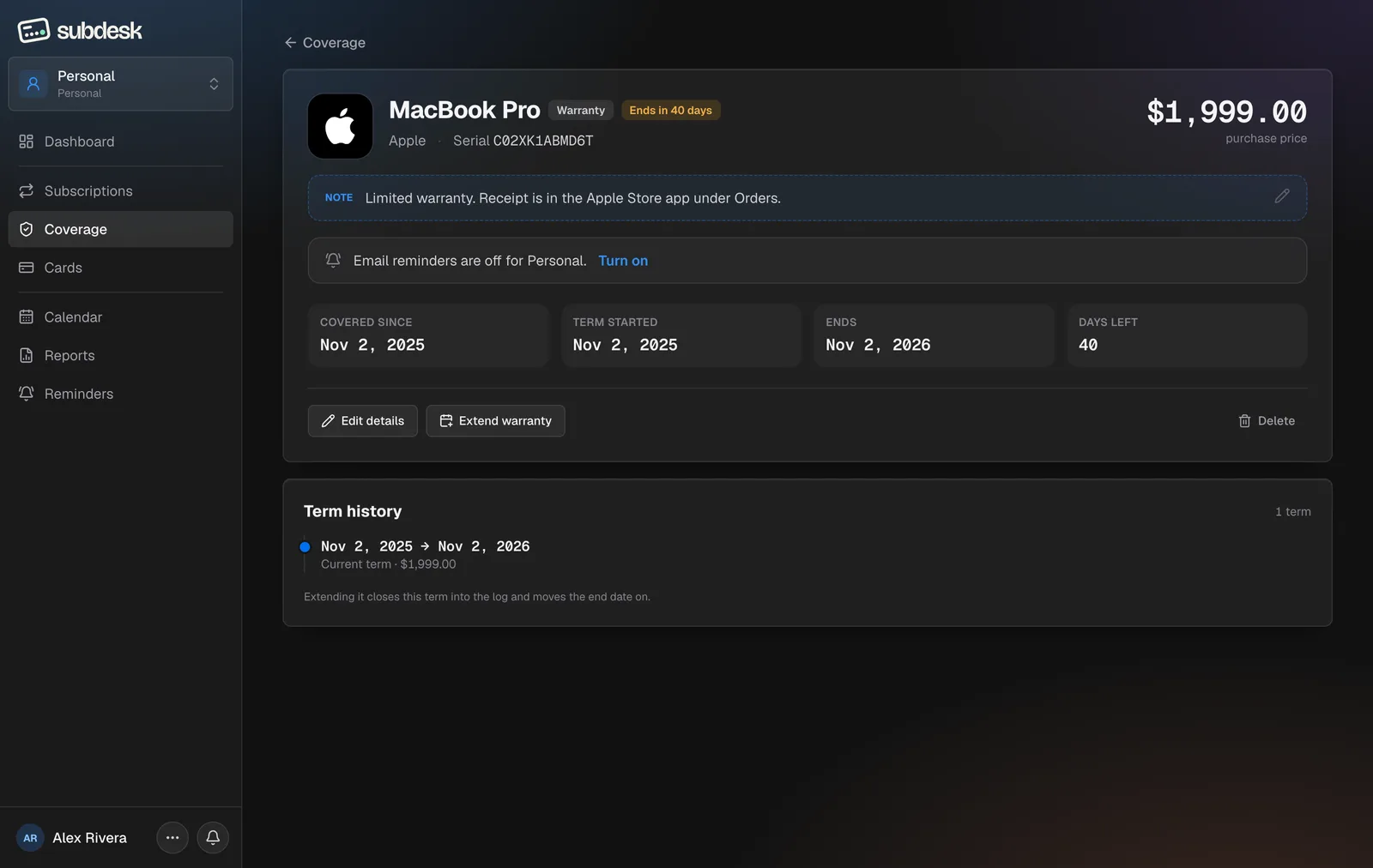
The coverage page
Each record has its own page with the term dates, days left, the price or premium, the note, and a Term history. Extend warranty or Mark as renewed closes the current term into the history and opens the next one, so every past term is kept. Mark cancelled keeps it readable; Delete removes it.